
Verified guide
This guide was verified by creating a cloud server and running every command in it, from start to finish, exactly as written.
- OS
- Windows 11 Pro 25H2 (build 26200) · x64
- Installed version
- DBerio 1.0.1.0 (Microsoft Store 9N53NQGJ3TNG)
- Test server
- Microsoft Azure · 2 vCPU / 4 GB RAM (Standard_B2als_v2, koreacentral)
- Last checked
- 2026-10-17
This guide shows how to install DBerio on Windows 11 from the Microsoft Store and run it for the first time. It also covers installing DBerio with winget in PowerShell and removing it.
1. Requirements
- A Windows 11 PC (x64)
- An internet connection
You can install DBerio without signing in with a Microsoft account. The steps in this guide were also done with a local account, without signing in to the Microsoft Store.
Every step in this guide was tested on a Windows 11 Pro 25H2 (build 26200, x64) virtual machine with 2 vCPUs and 4 GB of memory. The installed DBerio version is 1.0.1.0.
2. Find DBerio in the Microsoft Store
Open Microsoft Store from the Start menu. Type dberio in the search box at the top and press Enter. DBerio appears as the first result. Check that the publisher is CodeSand Co. Ltd. and select it.
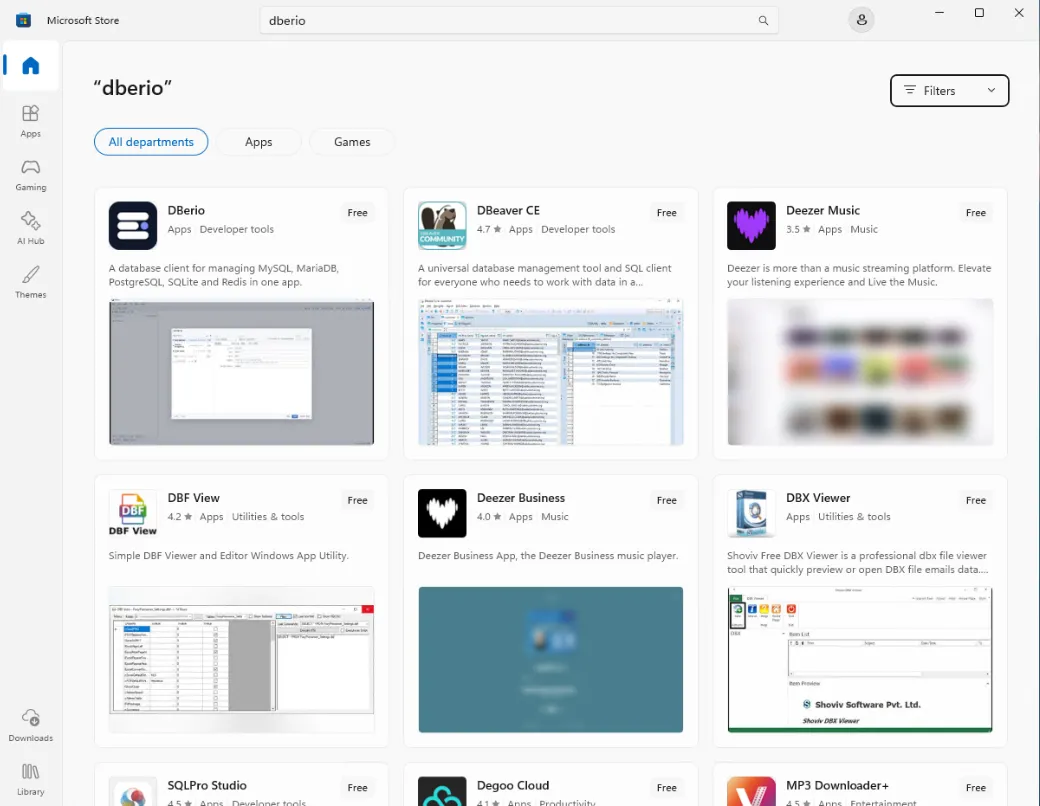
You can also open apps.microsoft.com/detail/9N53NQGJ3TNG in a browser to go to the same app page.
3. Install DBerio
On the app page, click Get. DBerio is a free app, so you are not asked for payment details.
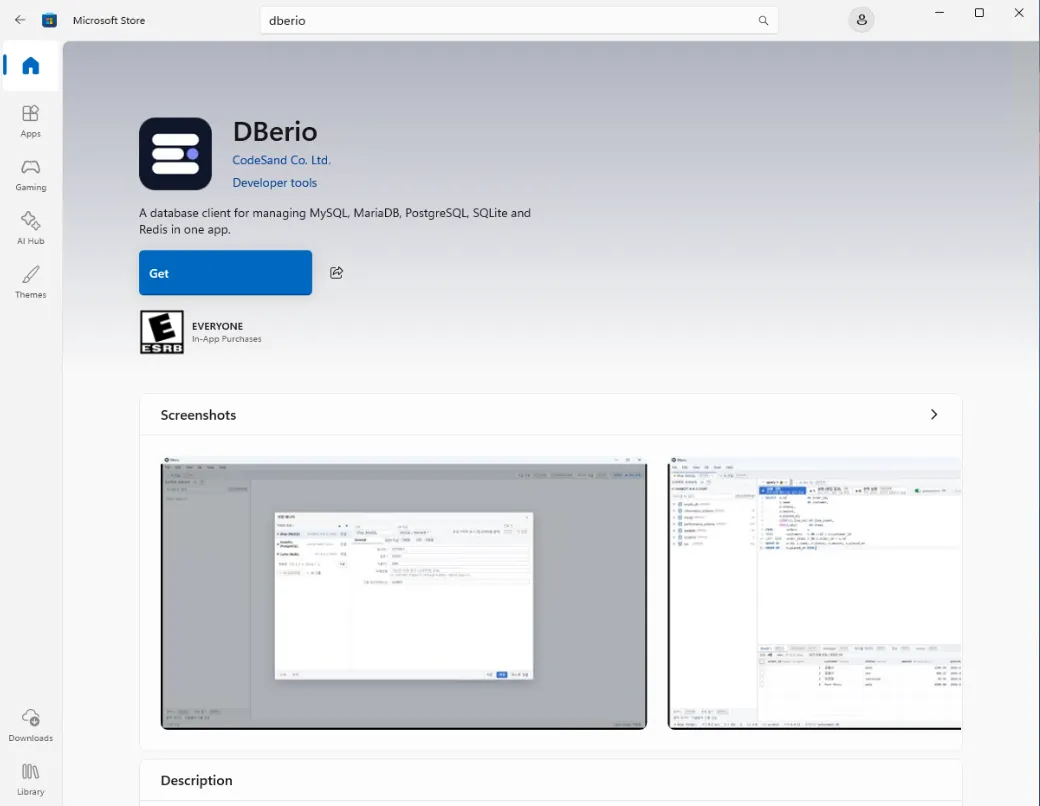
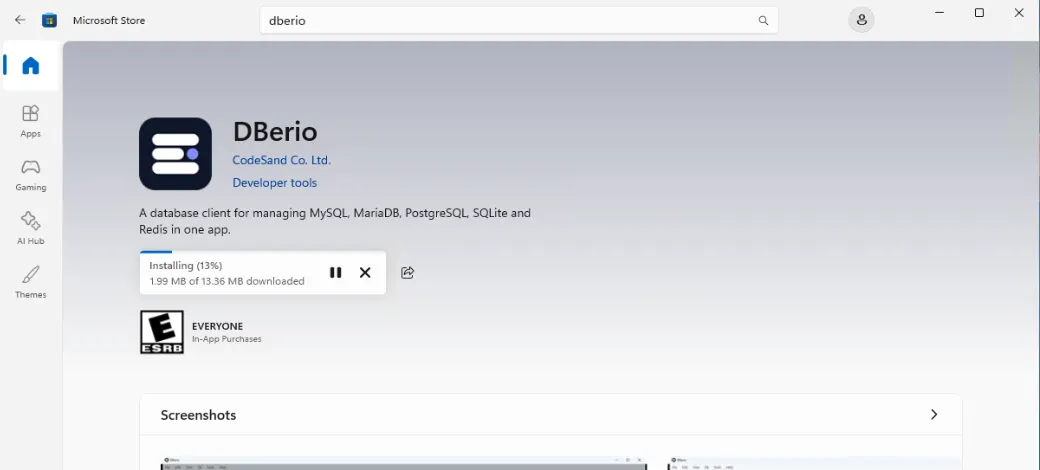
The button changes to show the progress and the downloaded size. The download is about 13 MB.
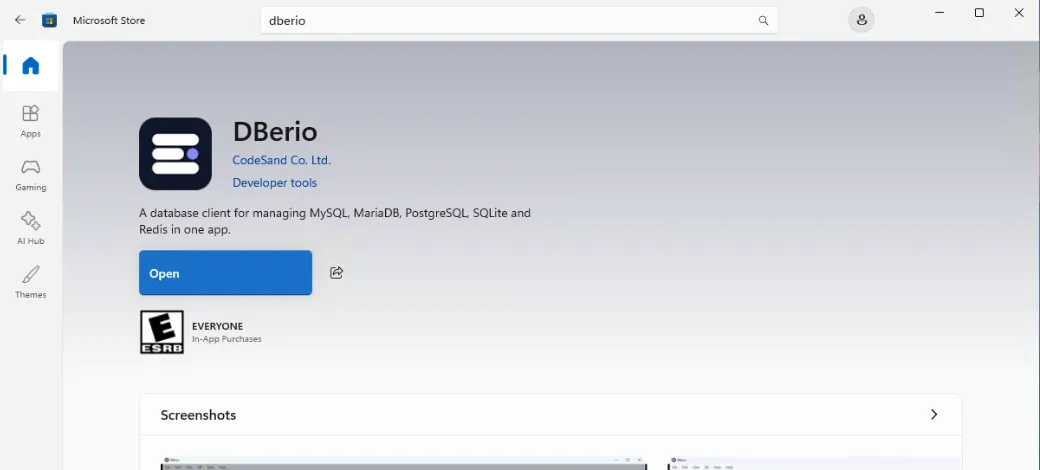
When the installation finishes, the button changes to Open.
4. Run DBerio
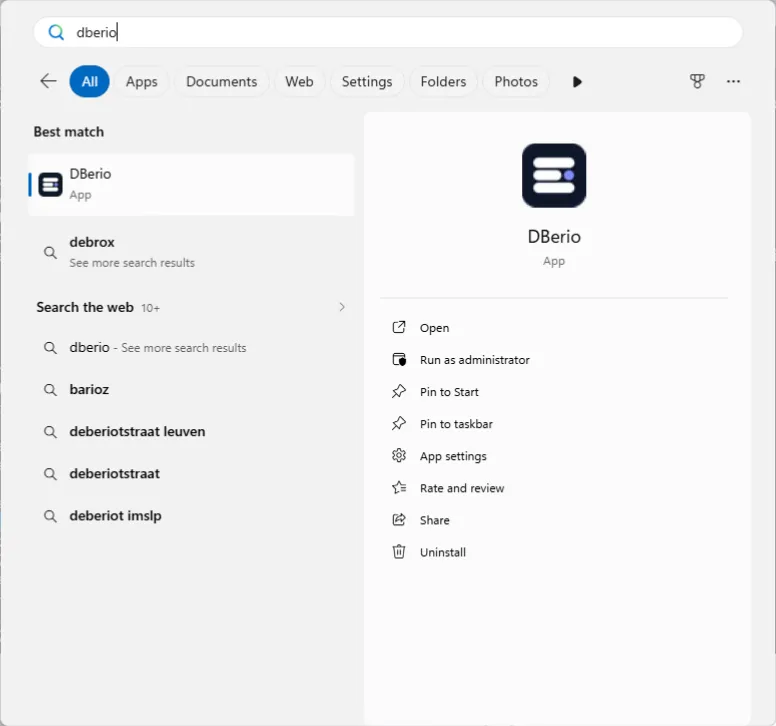
Click Open in the Store, or search for dberio in the Start menu. To open it faster next time, click Pin to Start or Pin to taskbar on the right side of the search result.
The first time you run DBerio, the Connection Manager window opens. There are no saved connections on the left. On the right, you can create a new connection by entering the database type, host, port, and user. The defaults are MySQL / MariaDB, localhost, and 3306.
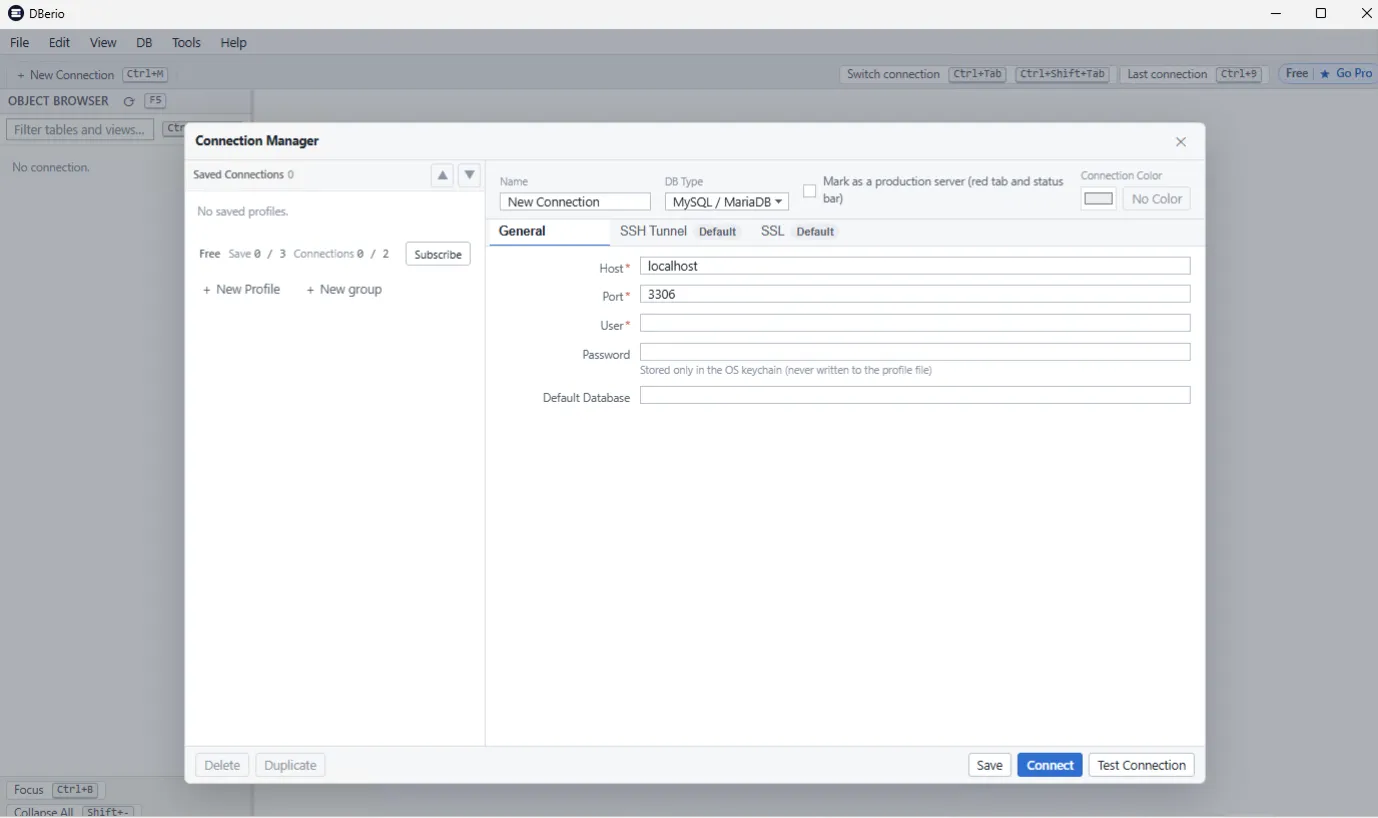
Free Save 0 / 3 Connections 0 / 2 at the bottom left means the free version can save up to 3 connection profiles and keep up to 2 connections open at the same time.
5. Install with winget
You can also install DBerio from PowerShell instead of the Store app. winget is the package manager included with Windows 11. Search for PowerShell in the Start menu and open it. You do not need to run it as administrator.
First, search for DBerio. The first time you search for a Microsoft Store app with winget, it asks whether you agree to the msstore source agreements. Type Y and press Enter to see the results.
winget search dberioThe `msstore` source requires that you view the following agreements before using.
Terms of Transaction: https://aka.ms/microsoft-store-terms-of-transaction
The source requires the current machine's 2-letter geographic region to be sent to the backend service to function prope
rly (ex. "US").
Do you agree to all the source agreements terms?
[Y] Yes [N] No: y
Name Id Version Source
------------------------------------
DBerio 9N53NQGJ3TNG Unknown msstoreInstall it with 9N53NQGJ3TNG from the Id column. -s msstore tells winget to look in the Microsoft Store source. When the app information and agreements appear, type Y and press Enter.
winget install 9N53NQGJ3TNG -s msstoreFound DBerio [9N53NQGJ3TNG] Version Unknown
This package is provided through Microsoft Store. winget may need to acquire the package from Microsoft Store on behalf
of the current user.
Agreements for DBerio [9N53NQGJ3TNG] Version Unknown
Version: Unknown
Publisher: CodeSand Co. Ltd.
Publisher Url: https://codesand.co.kr/
License: ms-windows-store://pdp/?ProductId=9N53NQGJ3TNG
Privacy Url: https://dberio.com/about/privacy
Copyright: © 2026 CodeSand Co. Ltd. All other product names are trademarks of their respective owners. DBerio is not aff
iliated with them.
Agreements:
Category: Developer tools
Pricing: Free
Free Trial: No
Terms of Transaction: https://aka.ms/microsoft-store-terms-of-transaction
Seizure Warning: https://aka.ms/microsoft-store-seizure-warning
Store License Terms: https://aka.ms/microsoft-store-license
The publisher requires that you view the above information and accept the agreements before installing.
Do you agree to the terms?
[Y] Yes [N] No: y
Starting package install...
██████████████████████████████ 100%
Successfully installedCheck the installed version. The version shown as Unknown in the search results now shows the actual version.
winget list dberioName Id Version Source
------------------------------------
DBerio 9N53NQGJ3TNG 1.0.1.0 msstoreDBerio installed with winget is the same app as the one installed from the Store. Run it the same way as in step 4.
6. Troubleshooting
Do you agree to all the source agreements terms?
winget asks this once, the first time you search for or install a Microsoft Store app. To use the Microsoft Store source, you need to accept its terms and send the two-letter region code of your PC (for example, US). Type Y to continue. winget does not ask again for the same user account on that PC.
Version Unknown
winget search and winget install show the version of Microsoft Store apps as Unknown. This is not an error, and the installation works normally. After installing, run winget list dberio to see the actual version.
No installed package found matching input criteria.
If winget list dberio shows this message, DBerio is not installed. Install it again with steps 2 and 3 or step 5. If you see this message after removing DBerio, the removal finished successfully.
7. Uninstall DBerio
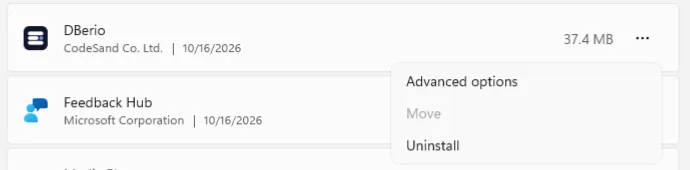
Open Settings › Apps › Installed apps. You can also search for installed apps in the Start menu to open it directly. Click the … button to the right of DBerio in the list and choose Uninstall.
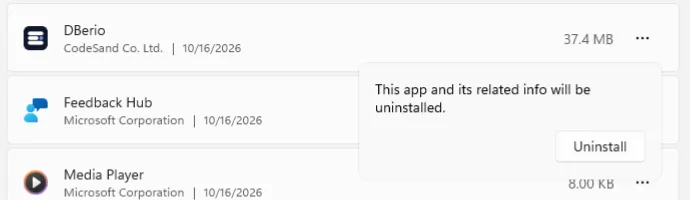
When a confirmation appears saying that the app and its related info will be uninstalled, click Uninstall again. DBerio disappears from the list after a few seconds.
In PowerShell, run the following command to remove it.
winget uninstall 9N53NQGJ3TNGFound DBerio [9N53NQGJ3TNG]
Starting package uninstall...
██████████████████████████████ 100%
Successfully uninstalledCheck that it was removed.
winget list dberioNo installed package found matching input criteria.Was this guide helpful? Let us know if anything is wrong or out of date.
Request a correction